CS775 ASSGINMENT 1
Jai Mashalkar : 113050007
Ahana Pradhan : 113050039
User Interface:
Following are the steps to be followed to create an animation:
Two windows are provided. One is for displaying the animation where the user has to choose the position of the control points and the other window
provides interface for specifying angle and axis of rotation for a perticular position of control point.
First is the "cube" window, later is the "Input" window.
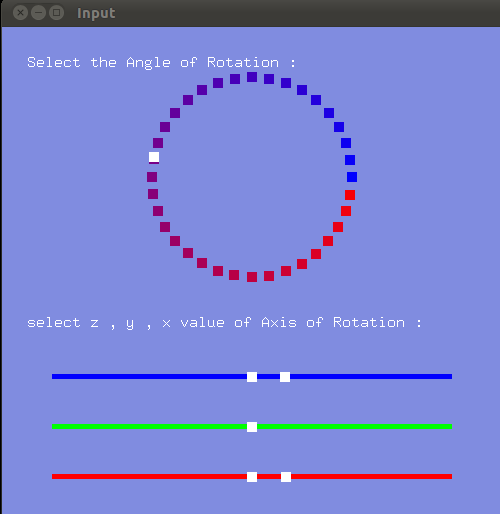
To specify the position of the control point:
1. Select "cube" window.
2.Press "x" / "y" / "z" to select the x, y, z axis respectively.
3. Then press "+" / "-" to adjust
the values for corresponding axis.
4. Press "spacebar" to freeze the position.
Note:
*User can press "u" to undo the selected configuration of the current cube.
*In the "input" window, selected value of x, y, z are marked so that user can have an approximate idea about the relative ratios among the values.
Exact scale for the values are not provided.
To Draw the Bezier Curve With the above selected control points:
Press "d".
To Move the Cube to the desired position along the path :
1. Press "1" to move forward.
2. Press "2" to move backward.
To specify input for angle and axis of rotation for a perticular position of the cube on the curve:
1. Select "input" window.
2.Press "x" / "y" / "z" to select the x, y, z axis respectively.
3. Then press "+" / "-" to adjust
the values for corresponding axis.
4. Continue to press "a" untill desired angle value is reached.
5. Press "spacebar" to freeze
the specified inputs.
Now select the "cube" window and press "Enter" to see the cube at the selected position on the curve with selected orientation.
To see the created animation:
There are the following options available for animation:
1. Press "r" for playing the currently created animation.
2. Press "c" for playing the currently created animation with the cube shown at every interpolated steps.
3. Press "s" for saving the current animation to the file "keyframes.txt".
4. Press "p" for playing the animation saved in "keyframe.txt".
5. Press "b" to toggle the display of the Bezier curve that indicates the path followed by the cube.
6. Press "n" to toggle between "slerp" and "Bezier Curve" mode interpolation.
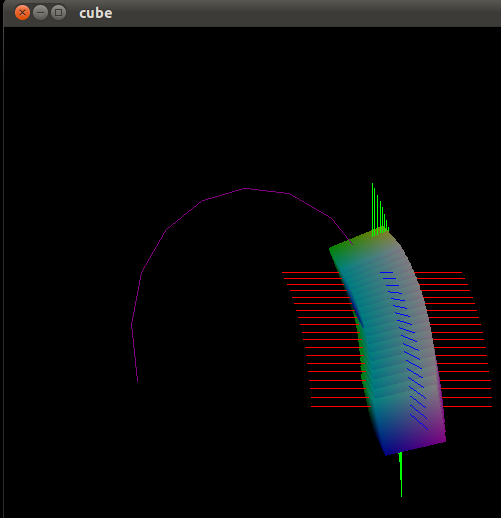
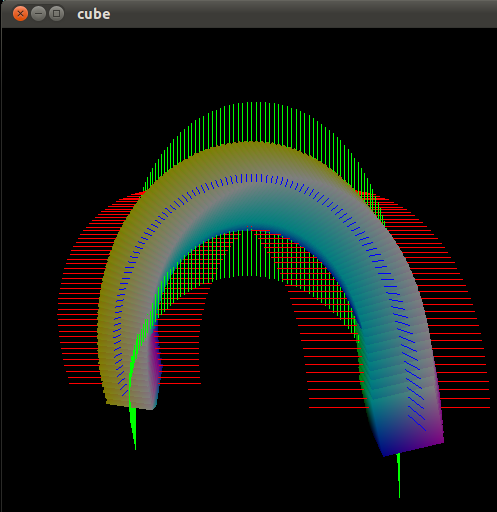
Snapshots:
Saving all control points
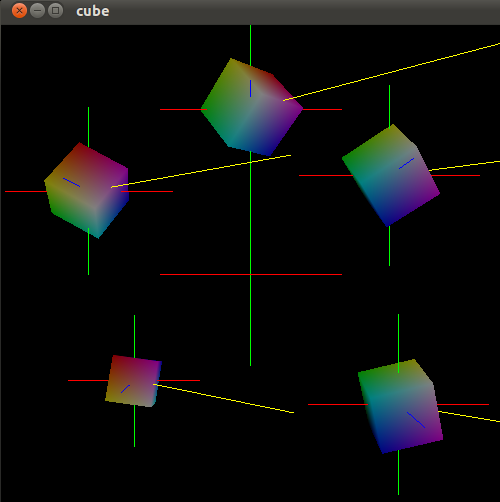
Replaying the current animation
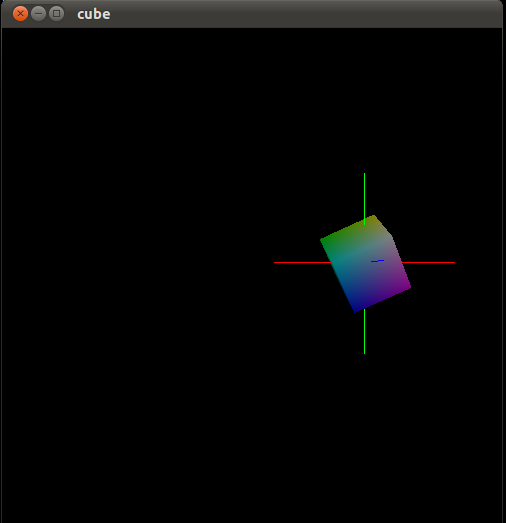
Replaying the current animation while bezier curve is shown
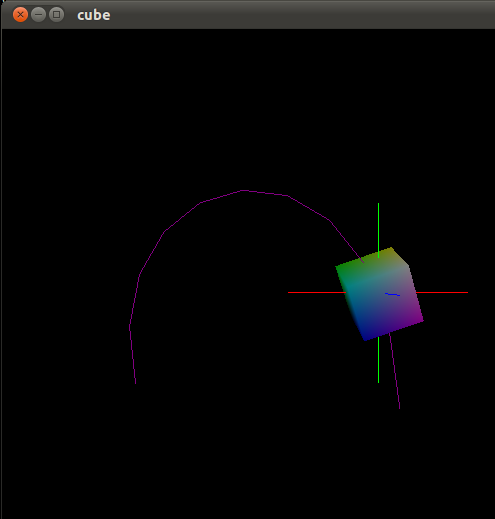
Replaying the current animation with the cube shown at every interpolated steps
Quaternion Library:
- Overloading of operators for Quaternion operations: =, +, -, *
- Quaternion Dot product
- Quaternion product
- Double
- Bisect
- Lerp
- Slerp
- Quaternion to Rotation Matrix
- Rotation Matrix to Quaternion
- Set Angle and Axis of a Quaternion
- Get Angle and Axis from a Quaternion
Bezier Curve:
Position Curve:
The curve is created from the selected positions of the control points. We have used de casteljau's algorithm to find the points on the curve
and to draw them.
Orientation Curve:
The curve is created by adding control points over the given points. Additional control points are found out using "double" and "bisect"
operations as mentioned in this document.